
Moving a client's domain onto a new DNS host is a fifteen minute job that occasionally costs a week of goodwill. The website usually survives, because the apex address record is the one thing every import tool finds. Mail is what breaks: a DKIM selector the scanner never guessed, an SPF record rebuilt from memory, an MX entry retyped with the wrong preference.
This guide does the job in the order that keeps mail flowing: inventory, build, test, and only then change the nameservers. It works whatever your client's mailboxes sit on today, and the last section covers the same cutover when they sit on Atriomail, where the panel hands you the exact record set instead of making you reconstruct one. By the end you will have a domain answering from new nameservers with every mail record intact, and proof you can show the client.
Table of Contents
- Key Takeaways
- Before You Start
- Step 1: Inventory the Zone You Actually Have
- Step 2: Build the New Zone First
- Step 3: Query the New Nameservers Directly
- Step 4: Switch the Delegation and Leave the Old Zone Alone
- How to Verify It Worked
- Common Mistakes and How to Avoid Them
- Doing This on Atriomail
- FAQ
Key Takeaways
| Point | Details |
|---|---|
| No scanner can list a zone from outside | DNS has no query that enumerates a zone, so an import scan guesses common names. Cloudflare's documentation names a custom DKIM selector as the case its scan misses. |
| Lower the TTLs a day or two ahead | RFC 1912 gives the sequence: turn the value down, wait out the old one, change, verify, put it back. |
| Leave the old zone serving for a week | Resolvers cache the delegation itself, so deleting the old zone on cutover day turns a clean move into intermittent bounces. |
| Atriomail removes the guesswork from the mail half | Every domain gets a DNS Setup dialog listing what to publish, each value with a copy button, and the panel re-checks live records against that domain's own DKIM key and Amazon SES records. |
Stop rebuilding mail records from memory. On Atriomail every domain carries its own DNS Setup dialog with the MX, SPF, DMARC, DKIM and Amazon SES values it needs, each with a copy button.
Before You Start
This is a planned change, not a repair, so preparation matters more than execution. Have all of this in hand first:
- Registrar access, not just DNS host access. Nameservers are set at the registrar, and if the client registered the domain themselves years ago, finding who holds that login is the step that quietly adds a week.
- Admin on both DNS hosts, so the old zone stays readable while you build the new one.
- A zone file export from the old host, if it offers one. Ask explicitly: an export is the only source complete by construction, everything else is a list someone assembled.
- A list of every service that sends mail as the domain: the mail platform, the CRM, the invoicing tool, the website's form handler. Each is probably an
include:in the SPF record, and if it goes missing its owner notices before you do. Our guide to SPF records that fail with a PermError covers reading an existing record before you move it. - Lowered TTLs on the mail records, one to two days ahead. RFC 1912 section 2.2 gives the sequence: "turn this value down temporarily beforehand. Then wait the previous minimum value, make your changes, verify their correctness, and turn this value back up." Three hundred seconds is sensible during the move.
Book the window early in the week and early in the day: a Friday afternoon change gets diagnosed on Monday, and the thing you are moving is how the client would tell you it broke. Across a book of accounts the risk scales with the number of domains while the preparation does not, the argument for a written runbook made in our client email management guide and our notes on managing email across many client domains.
Step 1: Inventory the Zone You Actually Have
There is no DNS query that returns every name in a zone. That single fact causes most broken DNS moves: every "we'll scan your records for you" feature is really a list of common names tried one at a time. Cloudflare documents this openly. Its quick scan is "built upon a list of recurring patterns of DNS records Type and Name" seen in other active zones, so "there can be cases where not all records are picked up", and the example the page gives is the one that costs you mail: a DKIM record at this._domainkey rather than default._domainkey will not be found. (Cloudflare's "Records quick scan" documentation, April 2026, checked November 2026.)
So start from an export where you can, and otherwise build the list by name:
- MX at the apex, with the preference number on each. The numbers are part of the record, not decoration.
- TXT at the apex holding SPF, beginning
v=spf1. Exactly one: RFC 7208 section 4.5 says more than one such record makes the check returnpermerror. - TXT at
_dmarc. RFC 7489 section 6.1 places DMARC policy in a subdomain named_dmarc, so for example.com it is_dmarc.example.com. - TXT at
<selector>._domainkeyfor every selector in use. RFC 6376 section 3.6.2.1 stores DKIM keys under_domainkey, as inbrisbane._domainkey.example.com. Selectors are arbitrary strings, which is why scanners miss them: read thes=tag from theDKIM-Signatureheader on a message the domain sent, and look for a second if it is part-way through a key rotation. - Client autoconfiguration names, usually
autodiscoverandautoconfig, plus anymail,webmail,smtporimaphost records. Copy the values there rather than inventing new ones; see an autodiscover record left pointing at the old mail host. - MTA-STS and TLS reporting, if published:
_mta-sts, themta-stshost serving the policy, and_smtp._tls. Our MTA-STS setup guide has the detail.
Write the list into the ticket with each entry's current TTL. It is what you diff against later.
Price the mail side before you move it. Atriomail is $1.39 per mailbox per month with 15 GB included and extra storage at $0.60 per 5 GB block, with no minimum and no contract.
Step 2: Build the New Zone First
A zone created at a new DNS host serves nobody until the delegation points at it. That makes this step free: build it, get it wrong, fix it, build it again, while the old host carries every byte of live traffic.
If the old host gave you a zone file, import it rather than retyping. On Cloudflare the control sits on the DNS Records page under Import and Export and takes a BIND format zone file. Two details worth having in front of you: the content of CNAME, MX, NS, PTR and SRV records must be fully qualified and end in a trailing period, as in mail.example.com., and the size limit is 256 KiB. (Cloudflare's "Import and export records" documentation, April 2026, checked November 2026.)
Then review what landed, the point Cloudflare itself presses: "You should always review your DNS records and manually add any missing ones before changing your nameservers." Walk the inventory line by line, watching three things:
- MX targets must not be aliases. RFC 2181 section 10.3 is unambiguous: the name used as part of an MX record's value must not be an alias, must have address records, and "can also have other RRs, but never a CNAME RR."
- Proxying must be off for mail names. On Cloudflare that is the grey cloud, as our manual DNS setup instructions also spell out.
- TTLs are not defaults. Hosts set new records to "Auto" or an hour; use the short value you chose in preparation.
This is also the one window where cleaning up an accumulated mess of mail records costs no extra downtime.
Step 3: Query the New Nameservers Directly
The new zone is answerable right now from the new host's nameservers, even though no resolver will ask them yet. So ask them yourself: this is what separates a clean cutover from a hopeful one. Query each nameserver in the new set by name with recursion off, because these are authoritative servers and you want their own answer. In BIND's dig the recursion desired bit is set by default and +norecurse clears it (the BIND 9 dig manual page, checked November 2026):
dig @ns1.newhost.example +norecurse example.com MXdig @ns1.newhost.example +norecurse example.com TXTdig @ns1.newhost.example +norecurse _dmarc.example.com TXTdig @ns1.newhost.example +norecurse selector1._domainkey.example.com TXT
Repeat the set against every other nameserver the new host assigned. A zone that loaded onto two of four looks perfect from your desk and fails for a quarter of the internet, invisibly until the delegation has moved.
Now diff the answers against the inventory: preference numbers on the MX records, the complete SPF string including every include: and the final qualifier, the full DKIM public key with no inserted line breaks, the DMARC policy exactly as it was. A DKIM value truncated by a copy and paste is the commonest import defect, and it produces mail that delivers but fails authentication, which is worse than a bounce because nobody notices for a week.
Step 4: Switch the Delegation and Leave the Old Zone Alone
The nameserver change happens at the registrar, not at either DNS host. Replace the full set with the one the new host gave you, save, and then do nothing else for a while.
The delegation is itself a cached record, separate from the records inside the zone. Resolvers that already learned the old nameserver set keep using it until their copy expires, so queries keep arriving at the old host afterwards, from some networks and not others, for a period you do not control. That is normal, and harmless as long as the old zone still answers correctly.
So resist the tidy-up: leave the old zone unchanged and serving for at least a week. If the client is changing mail platforms too, do not strip the previous provider's MX entries out on cutover day either, as our notes on avoiding service interruptions during mail changes argue. Raise the TTLs back only once the verification below has passed.
How to Verify It Worked
A correct result is specific, not a feeling that things seem fine. Check all four:
- The delegation answers from a public resolver. Query a resolver you do not control and confirm the MX, SPF, DKIM and DMARC records come back with your inventory's values.
dig +trace example.com MXwalks the chain from the root and shows which nameservers are being consulted. - The records are well formed, not merely present. Our free DNS checker runs without an account: enter the domain and it reports whether the MX, SPF, DKIM and DMARC records exist and are well formed, with a suggested fix for anything missing, using the DKIM selector you type so you can test each one the domain really signs with.
- Real mail passes authentication. Send from an address on the domain to an external mailbox you control, open the full headers and read the
Authentication-Resultsline. You wantspf=pass,dkim=passanddmarc=pass, with the DKIMd=value matching the domain. A DKIM pass is the strongest proof the long key record came across intact. Send one inbound too. - The aggregate reports agree a day later. DMARC reports arrive on the receivers' own schedule and will show you senders nobody mentioned. Our guide to reading a DMARC aggregate report covers what the counts mean.
Common Mistakes and How to Avoid Them
- Changing the nameservers first and building the zone afterwards. The symptom is a website back within minutes while mail bounces for hours, because the empty zone gets cached the moment the delegation moves.
- Trusting an import scan for DKIM. The symptom is mail that delivers normally but starts failing authentication, with
dkim=noneordkim=permerrorin the headers and a drop in DMARC pass rates a day later. Check every selector by name, as in a DKIM signature that fails after a migration. - Ending up with two SPF records. One arrives in the import, somebody adds another by hand, and both begin
v=spf1. SPF then stops evaluating altogether and returnspermerrorper RFC 7208, so mail that used to pass now fails. - Retyping MX preference numbers wrong, or dropping them. The symptom is mail arriving at the wrong server, often an old backup host that accepts it and does nothing with it. The client sees no bounce, which is why this takes days to find.
- Blaming the move for a pre-existing forwarding fault. Mail forwarded onward to an outside address keeps hitting the alignment problem it always had, and a DNS move gets blamed every time: see forwarded mail that fails SPF and breaks DMARC.
Doing This on Atriomail
When the client's mailboxes are on Atriomail, Step 1 is already written down for you. Every domain has a DNS Setup dialog under Email Domains listing what it needs published: the MX records, SPF, DMARC, the domain's own DKIM key and the Amazon SES verification records once generated, each with a copy button. You transcribe a published list instead of reverse-engineering one.
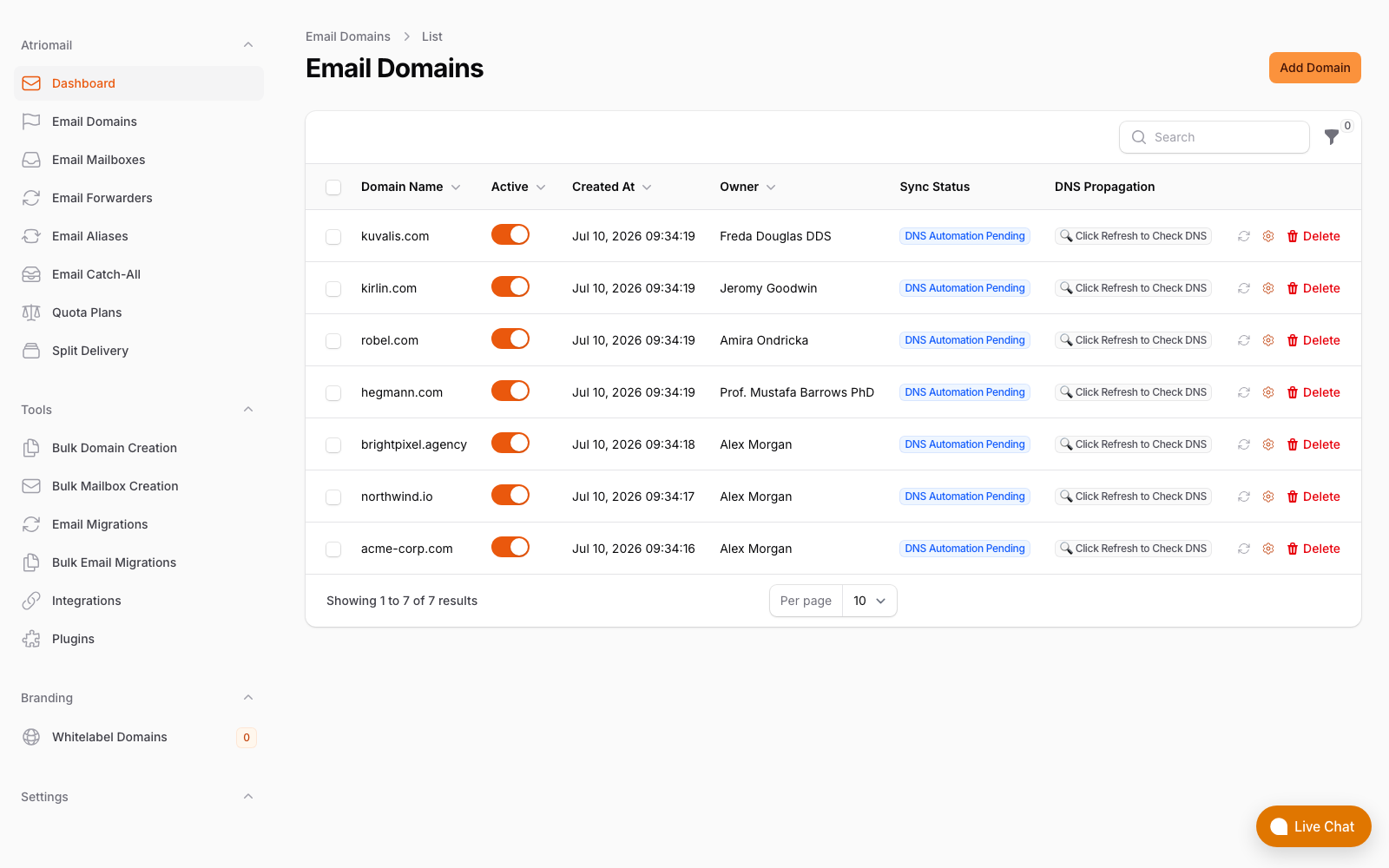
The Email Domains list in the Atriomail panel. The refresh control on each row re-checks that domain's live records.
For verification, Tools then DNS Checker compares a domain against its exact expected values, including the DKIM key and the Amazon SES records, and prints the change to make for anything wrong. The same check runs through the REST API, so a reseller moving a batch of domains can script the before and after.
If the new DNS host is Cloudflare or Namecheap, Atriomail can write the mail records itself, with one condition that catches people out: the order. Connect the provider under Tools then Integrations, run Test Connection and Sync Domains, and only then add the domain under Email Domains. The other way round, the domain reads "DNS Automation Pending" and the records go in by hand. On a connected account Atriomail writes the MX, SPF and DMARC records, the autodiscover and autoconfig records and the DKIM key, leaving any existing SPF or DMARC record in place rather than adding a second. More in our guide to connecting Cloudflare and Namecheap.
The limits, plainly: automatic mail DNS is built for Cloudflare and Namecheap, and anywhere else, Route 53 and DNSimple included, you publish from the DNS Setup dialog and check with us before relying on automation. The Amazon SES verification records are never published automatically, so some always get copied by hand. Writing the MX moves that domain's mail as soon as it clears its security check, so add the domain when you are ready to switch. Mailboxes are $1.39 a month with 15 GB included, and you can create an account before paying anything.
Moving the mailboxes as well as the DNS? Atriomail's IMAP migration keeps the folder structure and the original date on every message, with no charge. If the book is 50 mailboxes or more, plan it with us first.
Frequently Asked Questions
Do I have to transfer the domain registration too?
No. Changing nameservers and moving the registration to another registrar are separate jobs, and doing both in one week makes it much harder to tell which caused a problem.
Can I move a domain's DNS while its mailboxes are on Atriomail?
Yes. DNS records are standard and portable, and nothing about an Atriomail domain ties it to one DNS host. The DNS Setup dialog lists every record it needs, and the panel's DNS Checker compares the live records against its exact expected values once the delegation has moved.
Will Atriomail publish the records on the new host for me?
On Cloudflare and Namecheap, for a domain already in the connected account, yes: connect the provider, let it import the domain list, then add the domain. On any other DNS host, add the records from the DNS Setup dialog. The Amazon SES verification records are added by hand in every case.
What does a mailbox cost while I'm doing this?
$1.39 per mailbox per month with 15 GB included, and extra storage at $0.60 per 5 GB block. Creating an Atriomail account is free and needs no card, and you can add domains before paying anything, but mailboxes are billed from the first one. No minimum and no contract, so a single pilot domain is a fine way to start.
What if the client also needs their mailboxes moved?
Atriomail's IMAP migration signs in to the old server with an IMAP password and copies mail and folders, keeping the original date on every message. It works for typical hosting mail on cPanel, Plesk or DirectAdmin, and for Gmail or Google Workspace with an app password. Microsoft no longer allows password sign-in over IMAP, so moving a Microsoft 365 tenant needs a different route; talk to us before you quote it.
Recommended
- Connecting Cloudflare and Namecheap for Automatic Mail DNS, Atriomail
- Fixing an Autodiscover Record Pointing at the Old Mail Host, Atriomail
- Rotating a DKIM Key Without Breaking Signed Mail, Atriomail
- Email Domain Management: Setup and Branding, Atriomail
- The Power of Automated DNS Configuration, Atriomail
- Mastering DNS Automation for Deliverability, Atriomail
Latest from the blog
- Google Workspace API Usage Tiers: What Resellers Automating Client Email Must Do by February 2027 · Nov 26, 2026
- How to Retire a Client's Old Mail Server After an Email Migration · Nov 25, 2026
- When a Client's Domain Is Ready for Stricter DMARC: Atriomail's Grade and Guides · Nov 24, 2026
- AtrioDMARC vs EasyDMARC: An EasyDMARC Alternative for MSPs Who Host Client Email · Nov 23, 2026
- AtrioDMARC vs DMARC Advisor: A DMARC Advisor Alternative Billed Monthly per Domain · Nov 23, 2026