
Every client domain you add to Atriomail needs a specific set of DNS records before a single message is delivered: an MX record directing inbound mail to the mail server, an SPF record listing the authorized sending infrastructure, a DKIM key that cryptographically signs every outgoing message, and a DMARC record that instructs receiving servers what to do when authentication fails. Get those four right and the client's mailboxes work cleanly from day one.
For a reseller managing dozens of client domains, the per-domain setup step is where manual overhead compounds. Atriomail connects directly to Cloudflare and Namecheap to write those records into the DNS zone automatically the moment you add a domain and it clears the security check. This guide explains exactly how the connection works, which records it covers, the order you need to follow, and what the right approach is for every other DNS host.
Table of Contents
- Key Takeaways
- Who This Is For
- What You Need Before You Start
- How Automatic DNS Works in Atriomail
- The Three-Step Connection Process
- What Atriomail Publishes (and What It Does Not)
- For Every Other DNS Host: The DNS Setup Dialog
- What This Means for Your Business
- Limits to Know
- Frequently Asked Questions
- Recommended
Key Takeaways
| Point | What It Means |
|---|---|
| Works on Cloudflare and Namecheap | Atriomail writes mail DNS records directly into zones on connected Cloudflare and Namecheap accounts once a domain passes the security check. |
| Six record types published automatically | On a connected account, Atriomail publishes the MX, SPF, DMARC, autodiscover, autoconfig and the domain's DKIM key in one pass. |
| Amazon SES records are not automatic | The SES verification records for outgoing mail are always in the DNS Setup dialog; copy them by hand even on a connected provider. |
| Order matters: connect before you add | Connect the DNS provider, let Atriomail import the domain list, then add the domain. Add it before the import and the domain shows "DNS Automation Pending" instead. |
| Writing the MX moves inbound mail immediately | The moment Atriomail writes the MX record for a domain, that domain's inbound mail routes to Atriomail. Add the domain only when you are ready to cut over. |
| Other providers use the DNS Setup dialog | Every domain in Atriomail gets a dialog listing all records with copy buttons; no automation for other hosts, but everything is in one place. |
Add a domain and let Atriomail handle the records. Creating an account is free and needs no card. Mailboxes are billed from the first one at $1.39 per mailbox per month, 15 GB included.
Who This Is For
This guide is for hosting resellers and MSPs who use Atriomail to provide client email and who manage DNS for those client domains on Cloudflare or Namecheap. It also covers the manual path for any domain on a different DNS host, since most resellers have a mixed environment. If you are new to setting up and managing email domains for clients, start there before working through the connection steps below.
What You Need Before You Start
Three things need to be in place before Atriomail's DNS automation can do anything useful:
- An Atriomail account. Creating one at system.atriomail.com/admin/register is free and needs no card. You start paying when you add your first mailbox.
- A Cloudflare or Namecheap account that already contains the domain. The domain must already exist in that DNS account before you connect it to Atriomail. Connect the provider, let Atriomail import the domain list, then add the domain to Atriomail. Adding the domain first bypasses the automation entirely.
- The domain must pass Atriomail's security check. Every new domain goes through an automated screening process. The panel shows each domain's provisioning state: screening, review, ready or rejected. Only a domain that reaches "ready" gets its DNS records written. A domain in "review" is assessed by the Atriomail team.
How Automatic DNS Works in Atriomail
When you add a domain to Atriomail and that domain is already in a connected Cloudflare or Namecheap account, the platform reads the existing zone before writing anything. If an SPF record is already there (from a previous email service, for example) Atriomail leaves it in place and does not add a second one. The same applies to DMARC: an existing _dmarc TXT record is left alone. This matters for domains that are already sending mail from a different service and need a careful transition rather than a hard cutover.
For a clean zone, or for the records that are missing, Atriomail publishes the full set in one pass. The result is a domain that is ready to receive and send authenticated mail without any manual record editing on your side. The per-domain overhead of setting up email deliverability, which on self-hosted servers like MDaemon or SmarterMail is a manual step for every new domain (as covered in our MDaemon comparison for MSPs), is compressed into the domain-add flow.
The panel shows each domain's provisioning state and a refresh button re-reads the live DNS for any domain on demand. DNS automation also extends to white-label resellers. If you have the white-label add-on set up and your clients use your own branded mail server hostname (for example mail.yourcompany.com), Atriomail publishes that hostname in the mail DNS records instead of the default one, as long as that hostname resolves to the Atriomail mail server. White-label is a separate paid add-on with a one-time setup fee and a monthly fee. For more on building a branded service, see our guide on setting up branded email for agency clients.
The Atriomail panel also provides a per-domain DNS status check that re-reads public records on demand, and the free DNS checker at atriomail.com/dns-checker lets you check any domain without signing in. For a deeper look at how DNS authentication improves deliverability, that post covers the mechanics of each record type.
Moving 50 or more mailboxes across at once? Bulk migration lists many accounts from the same server in one job, but every account needs its own password. For larger books, talk to the Atriomail team before you start so the job is planned correctly.
The Three-Step Connection Process
The connection between Atriomail and your DNS provider follows a specific order. Getting it right is what decides whether automation runs or you end up adding records by hand.
Step 1: Connect the provider. In the Atriomail panel, open the Integrations section and connect your Cloudflare or Namecheap account. Once the connection is established, Atriomail imports the list of domains in that account into its view.
Step 2: Let the import run. Wait for the import to complete before adding any domains. The import brings your Cloudflare or Namecheap domain list into Atriomail. A domain that is not yet in the imported list shows "DNS Automation Pending" when you add it, which means Atriomail cannot locate it in a connected zone and falls back to manual setup.
Step 3: Add the domain in Atriomail. Once the domain appears in the imported list, use the Add Domain button to add it. The domain goes through the security check. When it reaches the "ready" state, Atriomail writes the mail records into the Cloudflare or Namecheap zone.
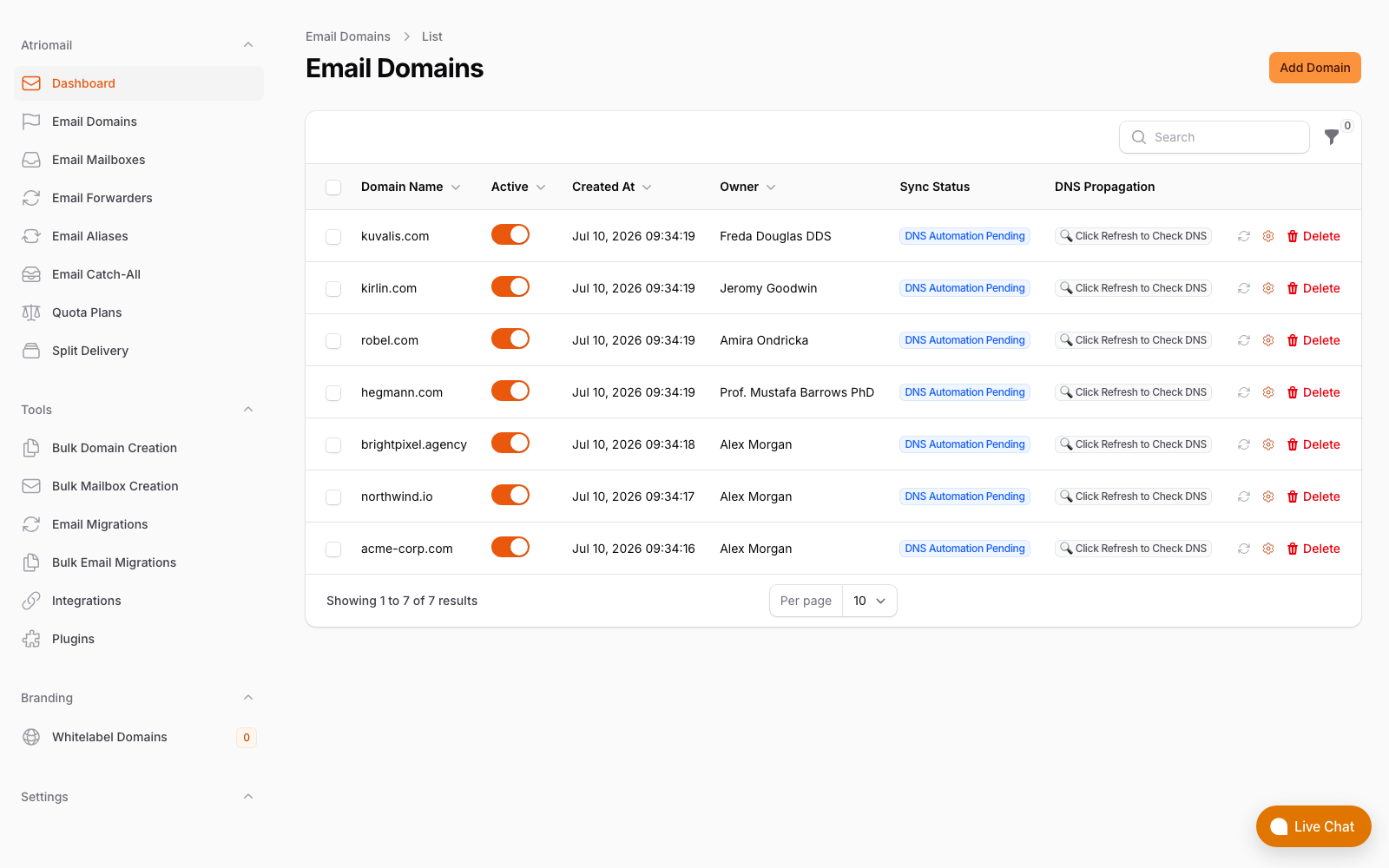
The Email Domains list in the Atriomail panel. All seven domains here show "DNS Automation Pending" in the Sync Status column, the state that appears when no DNS provider is connected or when a domain was added before the import ran.
The three-step order is the most common source of confusion for new resellers. If you find a domain stuck on "DNS Automation Pending," connect the provider, let the import run, then re-check the domain. Any records you already added manually from the DNS Setup dialog stay in place; Atriomail reads the zone and does not overwrite records that are already correct. Note that Cloudflare and Namecheap are specifically distinct from Cloudflare Email Routing, which is a forwarding-only service that does not host mailboxes. Our post on Cloudflare Email Routing vs. white-label email explains the difference if your clients are currently using Cloudflare for forwarding.
What Atriomail Publishes (and What It Does Not)
When automation runs successfully on a connected Cloudflare or Namecheap account, Atriomail publishes six record types for the domain:
- MX: directs inbound mail to the Atriomail mail server.
- SPF: a TXT record at the root of the domain authorizing the sending infrastructure.
- DMARC: a TXT record at _dmarc giving receiving servers a policy for messages that fail SPF or DKIM.
- Autodiscover: helps Outlook and compatible mail clients find the correct server settings without manual entry.
- Autoconfig: the same for Mozilla Thunderbird and other compatible apps.
- DKIM: the domain's signing key, published as a TXT record at dkim._domainkey, that signs each outgoing message with a cryptographic signature tied to the sending domain.
What is not published automatically on any provider, including Cloudflare and Namecheap: the Amazon SES verification records. Atriomail routes outgoing mail through Amazon SES, and SES requires its own domain ownership verification records (a TXT record and a CNAME) to authorize sending for each domain. Those records appear in the DNS Setup dialog in the panel once the domain passes the security check. You add them yourself at your DNS provider. Even on a connected Cloudflare or Namecheap account, you still need this one manual step per domain.
The DKIM key and SES records work together: both need to be in DNS for outgoing mail to be consistently signed. If the panel's DNS checker shows DKIM as correct but an SES record as missing, that is the record to copy from the DNS Setup dialog.
For a reseller managing a book of client domains, the practical workflow for each new domain on Cloudflare or Namecheap is: add the domain, wait for "ready," then copy the two SES records from the DNS Setup dialog into the connected zone. Everything else is already in place. Our step-by-step guide on email migrations for agencies covers the full sequence for a domain where mail is being moved from an existing service.
For Every Other DNS Host: The DNS Setup Dialog
If a client's DNS is managed at a registrar like GoDaddy or Porkbun, a hosting control panel like cPanel or Plesk, or any DNS service that is not Cloudflare or Namecheap, Atriomail cannot write records there automatically. For those domains, every record is in the DNS Setup dialog.
The DNS Setup dialog lists every record the domain needs, each with a copy button:
- MX record
- SPF TXT record
- DMARC TXT record at _dmarc
- DKIM TXT record at dkim._domainkey
- Amazon SES verification records (generated once the security check passes)
You copy each value and paste it into the DNS provider's interface. When all records are in place, use the refresh button on the domain in Atriomail to re-check and confirm they are correct. On Route 53, DNSimple, or any registrar's built-in DNS, this is always the path. The Atriomail knowledge base article on automatic DNS setup covers both the connected-provider path and the manual path in more detail.
For a reseller with a mixed client base, both paths work simultaneously: Cloudflare and Namecheap domains get automation, and everything else uses the DNS Setup dialog. Atriomail generates the records for each domain and keeps them available in the panel throughout.
What This Means for Your Business
Every new client domain added to Atriomail needs mail DNS records published. On Cloudflare and Namecheap, Atriomail handles that automatically; on every other provider, you add them from the DNS Setup dialog. How much that difference matters depends on your client mix and how you price setup time.
Consider a book of 200 mailboxes spread across 40 client domains. At $1.39 per mailbox wholesale and a $5.00 resale price, the margin is $722 a month before card fees, support time and any white-label fee. That math is the same regardless of which DNS provider each client uses. What changes is the time cost of onboarding those 40 domains. If you assume manual DNS setup takes you 20 minutes per domain (copying six records, pasting them at the provider, verifying propagation), 40 domains is over 13 hours of work that does not appear on any invoice. On Cloudflare or Namecheap, the SES records are the only remaining manual step per domain.
For a reseller growing a multi-client email practice, the automation also reduces the per-domain failure rate. A manually entered DKIM key is a long TXT record with no tolerance for typos; a copy-paste error is not always visible until a client reports mail landing in spam. Automation removes that failure mode for every Cloudflare and Namecheap domain, since Atriomail generates and writes the key directly rather than routing it through a human copy step.
Atriomail's pricing calculator lets you model any book size at your resale price, including extra storage add-ons at $0.60 per 5 GB per mailbox per month. For a reseller evaluating whether to move client domains from a self-hosted setup or a bundled hosting panel, the per-mailbox pricing model means the cost scales exactly with active mailboxes rather than with server capacity. There is no minimum mailbox count and no long-term contract.
Work out your margin before your next client conversation. The pricing calculator runs the numbers for any book size and resale price, including storage add-ons.
Limits to Know
- Only Cloudflare and Namecheap are confirmed for automatic DNS. On Route 53, DNSimple, or any other DNS host or control panel, add all records from the DNS Setup dialog manually.
- The domain must be in the connected account before you add it in Atriomail. Connect the provider and let the import run first. A domain added before the import shows "DNS Automation Pending" and requires manual record setup from the DNS Setup dialog.
- Writing the MX record moves inbound mail. The moment a domain clears the security check and Atriomail writes the MX, that domain's inbound mail routes to Atriomail. Do not add a live production domain until you are ready to cut over. If the client has mail to preserve, run the IMAP migration first.
- Amazon SES verification records are not published automatically on any provider. Even on a connected Cloudflare or Namecheap account, copy the SES verification records from the DNS Setup dialog and add them at the DNS host after the security check passes.
- Existing SPF and DMARC records are left in place. Atriomail reads the zone before writing and does not add a second SPF or DMARC record if one is already there. If the existing record is not compatible with Atriomail's requirements, the DNS checker will flag it so you can update it manually.
- Migration moves mail and folder structure only, not calendars or contacts. For guidance on running a complete migration sequence, the agency migration playbook covers the steps end to end.
- Atriomail support is available during business hours. For complex domain configurations or large-scale onboarding, contact the team through /contact-us/ before you begin.
Frequently Asked Questions
Which DNS providers does Atriomail support for automatic DNS publishing?
Atriomail's automatic DNS publishing works on Cloudflare and Namecheap. For any other provider, use the DNS Setup dialog in the panel to copy each record and add it manually at your DNS host.
What records does Atriomail publish automatically on a connected account?
On a connected Cloudflare or Namecheap account, Atriomail publishes the MX, SPF, DMARC, autodiscover, autoconfig and the domain's DKIM key. The Amazon SES verification records are not published automatically; copy them from the DNS Setup dialog and add them at your provider after the security check passes.
What happens if I add a domain before connecting my DNS provider?
The domain shows "DNS Automation Pending" in the Sync Status column. Atriomail cannot locate the domain in a connected zone and falls back to manual setup. Connect the provider, let the import run, and then re-check the domain. Any records already added manually stay in place.
Does Atriomail overwrite existing SPF or DMARC records when it writes the mail DNS?
No. Atriomail reads the zone before writing and leaves any existing SPF or DMARC record in place rather than creating a duplicate. If the existing record is incompatible with Atriomail's configuration, the panel's DNS checker will flag the conflict so you can resolve it.
Can I manage client domains on different DNS providers at the same time?
Yes. Connect one or more Cloudflare and Namecheap accounts in the Integrations section for the domains where those providers are used. For any client domain on another provider, use the DNS Setup dialog. Both paths are available simultaneously and Atriomail handles whichever applies to each domain.
Does DNS automation work for white-label resellers using a custom mail hostname?
Yes. With the paid white-label add-on, Atriomail publishes your branded mail server hostname in the DNS records instead of the default one, provided it resolves to the Atriomail mail server. White-label is a separate paid add-on set up by the Atriomail team.
Recommended
- Mastering DNS Automation for Email Deliverability, Atriomail
- Cloudflare Email Routing vs. White-Label Email: What MSPs Need to Know, Atriomail
- Email Domain Management: Setup and Branding Guide, Atriomail
- The Agency Playbook: Step-by-Step Email Migrations with Atriomail, Atriomail
- Multi-Client Email Management for Agencies, Atriomail
- Atriomail Pricing and Reseller Margin Calculator, Atriomail
Latest from the blog
- IceWarp Email Hosting for Resellers: Storage, Scale, and the White-Label Threshold · Sep 19, 2026
- Moving a Client's Mailboxes to Atriomail: How the Built-In IMAP Migration Works · Sep 18, 2026
- Zoho Workplace vs. White-Label Email Hosting: The $3/User Decision for MSPs · Sep 17, 2026
- MailEnable for Hosting Resellers: Free License, Manual Billing, and the Break-Even · Sep 15, 2026
- Selling Email in WHMCS: How the Atriomail Provisioning Module Works · Sep 14, 2026