
The mail moved weeks ago, the client is happy, and the old server is still in the zone: a second MX at preference 20, an SPF include for a host nobody sends through, a DKIM selector from 2023, an autodiscover record pointing Outlook at a box you meant to cancel. None of it looks broken, which is why it stays until the old account lapses and a supplier's invoice vanishes into a server with no mailbox for it.
This is the cleanup nobody schedules, in the order that keeps mail arriving: prove the old server is out of the delivery path, then take it out of MX, SPF, DKIM and everything a mail client follows. It works whatever the mailboxes sit on today, and the last section covers the same job on Atriomail, the reseller email hosting platform this site is about, where the panel lists the exact records a domain should have. By the end: a zone naming one mail host, a cutover you can prove from headers, and no account you are afraid to close.
Table of Contents
- Key Takeaways
- Before You Start
- Step 1: Prove It Is Out of the Delivery Path
- Step 2: The MX, and What Still Names It
- Step 3: SPF
- Step 4: The DKIM Selector
- Step 5: What Mail Apps Still Follow
- How to Verify It Worked
- Common Mistakes
- Doing This on Atriomail
- FAQ
- Recommended
Key Takeaways
| Point | Details |
|---|---|
| A leftover MX is a live route, and queues outlive the change | RFC 5321 has senders try the next MX when the preferred ones fail, and puts the give-up time for a queued message at 4 to 5 days, so keep the old mailboxes a week. |
| Mail clients follow their own records | A stale autodiscover or autoconfig entry sends a reconfigured client back to the old server, as in an autodiscover record pointing at the old host. |
| Atriomail gives you the list to clean up against | Every domain in the panel has a DNS Setup dialog listing the records it needs, plus a DNS status with a refresh button that re-checks the live records on demand. |
Know exactly which records should be there. Atriomail shows each domain's full record set in the panel, so the cleanup is a comparison instead of a guess. Creating an account is free and needs no card; mailboxes are billed from the first one, at $1.39 each with 15 GB included.
Before You Start
This is a job for the week after a cutover, not the hour after. Have these to hand:
- Write access to the domain's DNS. If you are moving the zone itself too, do that first and separately, following the steps for moving a domain to a new DNS host without breaking email.
- A login to the old mail host, or someone who has one. You need its delivery logs, not just its control panel.
- A list of everything else that sends as the domain: website forms, invoicing tool, CRM, any office device with SMTP credentials in it. Half this cleanup is finding systems nobody documented, a habit the client email management guide builds into onboarding.
- A lowered MX TTL, set to 300 seconds a day ahead.
Step 1: Prove the Old Server Is Out of the Delivery Path
Deleting records is easy. Proving nothing still depends on them is what saves the ticket, so it comes first. Start with what the internet sees, from a resolver that is not your office cache: dig MX client-domain.com +short @1.1.1.1, then the same against @8.8.8.8. Anything not in the new host's published set is the old server, a backup MX the client forgot, or a typo.
Then read the old host's logs for the last seven days, for two things: inbound messages still accepted for the domain, and outbound messages still sent through it. The first means a sender is still using the old route; the second means some system still relays through that server, which is the commonest reason a cleanup breaks a contact form a fortnight later. Check the old catch-all too: left on, it keeps swallowing mail, and nobody sees a bounce.
Moving the mailboxes as well as the records? Atriomail's IMAP migration is built into the panel and has no charge: it copies mail and folders from any server allowing IMAP sign-in with a password, keeping each message's original date. Books of 50 mailboxes and up are planned with us first.
Step 2: Remove the Old MX, and Anything That Still Names It
With the TTL already low, delete the old host's MX records so only the new host's set remains. Leave nothing "just in case": RFC 5321 says a sender sorts MX records by preference and must try the alternatives when the preferred host cannot be reached, so a spare entry pointing at a server you are about to cancel is not a safety net, it is a second inbox.
Now the part most cleanups miss. An MTA-STS policy names the mail servers senders may use, and it is cached independently of DNS. Under RFC 8461, enforce mode means a sender must not deliver to a host that fails MX matching, so a policy still listing mx: mail.old-host.com turns mail away from the new server, from exactly the senders who implement the standard. Check with dig TXT _mta-sts.client-domain.com +short, then fetch https://mta-sts.client-domain.com/.well-known/mta-sts.txt. If a policy is there:
- Keeping it: update the
mx:lines to the new host, one per hostname, and change theid=value in the_mta-stsTXT record. The id tells senders to fetch the new policy; without it they use the cached one until itsmax_ageexpires. Syntax in the guide to setting up MTA-STS. - Retiring it: RFC 8461 section 8.3 gives the order. Publish
mode: nonewith a smallmax_age, publish a new TXT id so senders fetch it, wait for every previously served policy to expire, and only then remove the TXT record and the HTTPS endpoint.
Then wait. RFC 5321 puts the give-up time for a queued message at generally 4 to 5 days, so keep the old mailboxes reachable for a week. Cancelling on the day of the MX change is how mail gets lost, and it is the one part of this job that cannot be undone.
Step 3: Take the Old Host Out of SPF Without Breaking the Rest
SPF is where decommissioned providers linger longest, because deleting an include feels riskier than leaving it. It is the other way round. An include: is evaluated by reading the SPF record of the named domain, and RFC 7208 defines what happens when that lookup finds nothing: the include returns "none", and the table in section 5.2 makes the whole check a permerror, the failure traced in this guide to SPF permerrors. An include for a host that later retires its SPF record takes down authentication for every message the client sends.
Read the live record with dig TXT client-domain.com +short and find the single string starting v=spf1; if two come back, fix that first, because more than one SPF record is a permerror on its own. Identify every term belonging to the old host: its include:, any a: or mx term resolving to it, any ip4: block from its sending range. Check the outbound logs from step 1 before deleting each one, then publish a single record holding the new host's term, the senders the client genuinely uses, and the same qualifier as before, usually ~all or -all.
You get something back: RFC 7208 caps a check at 10 DNS-querying mechanisms, so dropping a dead include returns a lookup to the budget, which matters on a client running a mail host plus a marketing tool plus a CRM, as the walkthrough of validating DNS automatically instead of by eye sets out.
Step 4: Retire the Old DKIM Selector, on a Clock
DKIM is the one record not to clean up on the day. A signature is verified when a message is delivered, not when it was sent, and messages sit in queues and get re-checked by mailing lists long after they left the outbox: pull the key while any of that is in flight and a message that was fine on Friday fails on Monday. RFC 6376 describes the transition, both keys advertised concurrently while mail may still be in transit and the old one removed at the end of that period. Two ways to end it, with no defined semantic difference:
- Remove the old
selector._domainkey.client-domain.comTXT record entirely. This is the normal choice for a retired host. - Revoke it by republishing the same record with an empty
p=value: a verifier must then treat the signature as failed and return PERMFAIL, key revoked. Better after a compromise, or when the old provider held the private key.
Either way, run the same clock as the MX change: hold the old selector for the queue window, then take it out, keeping the new host's selector published throughout. The mechanics match a planned key change, set out in the guide to rotating a DKIM key without breaking signed mail.
Step 5: Clear Out What Mail Apps and Other Systems Still Follow
Delivery is clean. What remains are the records a mail client reads when a user re-adds the account on a new laptop, which is when a stale entry returns as a support ticket.
Autodiscover and autoconfig. Microsoft's Autodiscover documentation gives Outlook's order: the root domain URL, then https://autodiscover.client-domain.com/autodiscover/autodiscover.xml, then an HTTP redirect, then a DNS SRV lookup for _autodiscover._tcp on port 443 (Microsoft Learn, checked November 2026). A CNAME at autodiscover pointing at the old host wins before the SRV record is consulted, so repoint or delete it, with any SRV entry naming that server. Thunderbird checks https://autoconfig.client-domain.com/mail/config-v1.1.xml first and ends by guessing names such as imap., smtp. and mail. on the domain (Mozilla Developer Network, checked November 2026), which is why a forgotten mail.client-domain.com A record matters: it is a live guess target and it will answer. Repoint or remove it and webmail., keeping the inventory the guide to managing client email domains describes.
DMARC reporting. A rua= address on the old provider's domain works only while that provider authorises it: RFC 7489 has receivers look for a TXT record at client-domain.com._report._dmarc.provider-domain.com containing v=DMARC1, and ignore the address if it is missing. Point rua= at a domain you control before the account closes and reports stop with no warning.
Saved SMTP credentials. Contact forms, invoicing tools, scan-to-email on a printer: each may hold the old server's hostname and password, and each fails silently when the account closes. Convert them while the old server still answers, a discipline covered in avoiding service interruptions with proven email protocols.
How to Verify It Worked
Four checks, each with a correct result you can show a client.
- The records.
dig MX client-domain.com +shortreturns only the new host's names, from two resolvers.dig TXT client-domain.com +shortreturns onev=spf1string with no term belonging to the old host. The old selector atselector._domainkey.client-domain.comreturns nothing or an emptyp=. - A real message, read in the headers. Send from an outside account and read the
Receivedheaders from the bottom up: the hop that accepted it should name the new host, with no line mentioning the old server, andAuthentication-Resultsshould showspf=passanddkim=passwith the new selector in thes=tag. - The reports, a day or two later. The old host's addresses should drop out of the domain's DMARC aggregate reports.
- A second opinion on the zone. Atriomail's free DNS checker runs without an account: it says whether MX, SPF, DKIM for the selector you type and DMARC exist and are well formed, suggests a fix for anything missing, and flags the SPF and DMARC mistakes that quietly stop mail being recognised. When a lookup fails it says so, rather than claiming a record is missing.
Cancel the old account only when all four agree, and export anything the client may need first. On Atriomail too, account data is deleted on cancellation, so move mail out before closing an account.
Common Mistakes and How to Avoid Them
- Cancelling the old account the same day the MX changed. Symptom: three days later the client forwards a supplier's bounce reading "550 5.1.1 user unknown", for a message sent before the move and queued against the old route ever since.
- Pulling the old SPF term while something still sends through it. Symptom: contact form notifications land in spam or get rejected, and nothing shows in the new host's logs, because those messages never went near it.
- Deleting the old DKIM selector on cutover day. Symptom: DMARC reports show
dkim=failfor mail you know was signed correctly, usually messages that went through a list or forwarder days earlier.
Doing This on Atriomail
When the new host is Atriomail, you are not reconstructing the target state from memory. Every domain in the Atriomail panel has a DNS Setup dialog listing the records it needs, MX, SPF, DMARC, and the DKIM key and Amazon SES verification records once generated, each with a copy button. Anything in the zone that is not on that list, and does not belong to the client's other services, is the old host.
Each domain also shows its DNS status, with a refresh button that re-checks the live records on demand, so you delete a record and confirm the result in the same minute. In the panel and through the API you can check a domain against its exact DKIM key and Amazon SES records: automated client setup in reverse.
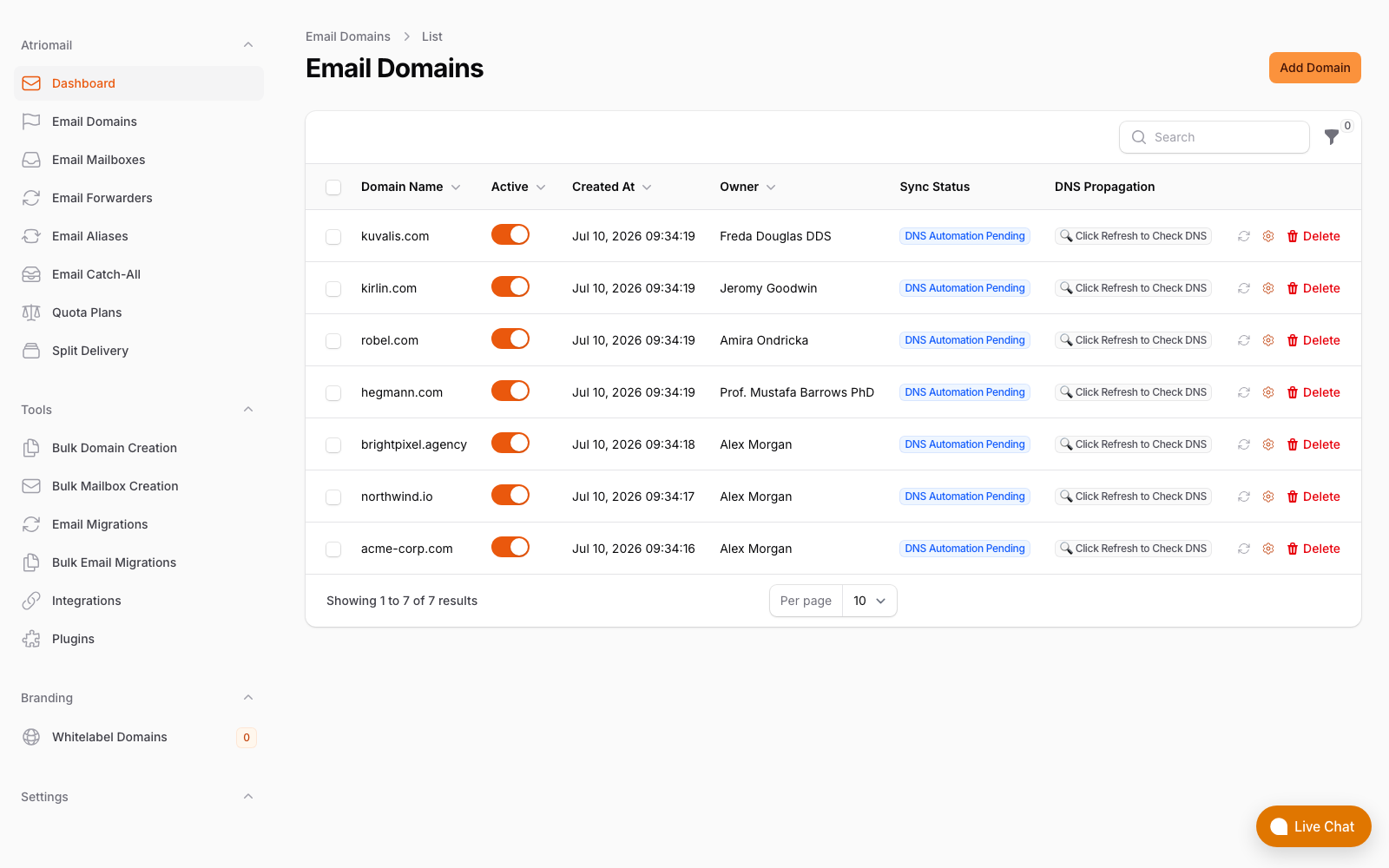
Each row in the Email Domains list carries its status and the refresh control that re-checks the live records.
On Cloudflare or Namecheap with the account connected, Atriomail writes the mail records into the zone itself, including the DKIM key, leaving an existing SPF or DMARC record in place rather than adding a second. Two conditions: the domain must already exist in the connected DNS account, and writing the MX moves its mail as soon as it clears the security check, so add it when you are ready to switch. On any other DNS host you add the records from the DNS Setup dialog by hand, and the Amazon SES verification records are never published for you.
Two things then confirm the old server is out of the picture. The Message log lists every message a mailbox sent or received in the last 30 days and what happened to each; it covers nothing before 13 November 2026, updates every 15 minutes, and no log can say whether a message reached the inbox or the spam folder. Email protection, free on a domain with a paid mailbox, lists who sends email as the domain, so a system still relaying through the old host shows up.
Mailboxes are $1.39 a month each with 15 GB included, extra storage $0.60 per 5 GB block, no setup fee and no minimum; the pricing page has the arithmetic for a full book, and you can create an account and add a domain before paying anything. No free trial: billing starts with the first mailbox.
One list of records per domain, and a refresh button. Add a domain and the panel tells you exactly what the zone should contain, then re-checks the live records whenever you ask. Creating an account is free and needs no card; mailboxes are billed from the first one.
Frequently Asked Questions
How long should I keep the old mailboxes after the MX change?
About a week. RFC 5321 puts the usual give-up time for a queued message at 4 to 5 days, so a server that started trying the old route before your change can still be trying it days later. Keep the old mailboxes answering until those logs go quiet.
Should I delete the old DKIM record or revoke it?
RFC 6376 says there is no defined semantic difference between a removed key and a revoked one, so deleting the record is the normal choice. Revoke instead, by republishing it with an empty p= value, when you want anything still signed with that key to fail explicitly, for example after a compromise.
Does Atriomail publish the new records for me?
On Cloudflare and Namecheap, yes, for a domain that already exists in the connected DNS account: Atriomail writes MX, SPF, DMARC, autodiscover and autoconfig plus the DKIM key once the domain clears its security check. The Amazon SES verification records are not, and on any other DNS host you add every record from the DNS Setup dialog yourself.
How do I confirm the cleanup worked on an Atriomail domain?
The domain's DNS status has a refresh button that re-checks the live records, the free DNS checker reads any domain's public records without an account, and the Message log shows what happened to each message a mailbox sent or received in the last 30 days, which is how you confirm real mail now arrives through the new host.
What does this cost on Atriomail?
Mailboxes are $1.39 per mailbox per month with 15 GB included, and extra storage is $0.60 per 5 GB block. Domains, aliases, forwarders and catch-alls are not billed, and IMAP migration has no charge. No setup fees, no minimum, no contract and no free trial: billing starts with your first mailbox.
Recommended
- How to Move a Client's Domain to a New DNS Host Without Breaking Their Email, Atriomail
- Fixing an SPF PermError From Too Many DNS Lookups, Atriomail
- The Agency Playbook: Step-by-Step Email Migrations, Atriomail
- Email Domain Management: Setup and Branding, Atriomail
- How to Automate Client Email Setup, Atriomail
Latest from the blog
- Google Workspace API Usage Tiers: What Resellers Automating Client Email Must Do by February 2027 · Nov 26, 2026
- When a Client's Domain Is Ready for Stricter DMARC: Atriomail's Grade and Guides · Nov 24, 2026
- AtrioDMARC vs EasyDMARC: An EasyDMARC Alternative for MSPs Who Host Client Email · Nov 23, 2026
- AtrioDMARC vs DMARC Advisor: A DMARC Advisor Alternative Billed Monthly per Domain · Nov 23, 2026
- Gmail Ends Third-Party Send As in January 2027: What Breaks in Your Client Book · Nov 23, 2026