
A client's domain moves to a new mail platform, the MX record updates cleanly, mail starts flowing, and a support ticket lands anyway: Outlook keeps asking for a password, or it quietly reconnects using settings for a mailbox that isn't there anymore. Nothing about the mailbox itself is broken. Outlook doesn't use the MX record to find its own server at all. It looks up a separate DNS record, usually autodiscover.clientdomain.com, and if nobody touched that record during the move, it's still answering with the old provider's settings.
This happens on every mail platform a domain can move to, Atriomail included. Moving a client's mailboxes with the built-in IMAP migration or the WHMCS module gets the mail itself onto the new server, but the autodiscover record is a separate DNS step, easy to miss on a checklist that's mostly focused on MX, SPF and DKIM. By the end of this guide you'll know how to find what autodiscover currently points to, publish the record for wherever mail actually lives now, clear the cached copy Outlook is still using, and confirm the fix actually took.
Table of Contents
- Before You Start
- Check What Autodiscover Currently Resolves To
- Point Autodiscover at the New Mail Host
- Add the SRV Record So Other Clients Find It Too
- Force Outlook to Drop Its Cached Profile
- How to Verify It Worked
- Common Mistakes and How to Avoid Them
- Doing This on Atriomail
- Frequently Asked Questions
Key Takeaways
| Point | Details |
|---|---|
| Outlook doesn't use MX to find its own server | It queries autodiscover.yourdomain.com, with a DNS SRV record as a fallback, so a clean MX cutover can still leave Outlook talking to the old host. |
| The record is easy to leave behind | A migration checklist built around MX, SPF and DKIM often has no line for autodiscover at all, the same kind of gap covered in fixing an SPF record with too many DNS lookups. |
| The fix has two halves | The DNS record has to change, and Outlook's own cached copy of the old response has to clear, or the client keeps using stale settings regardless of what DNS now says. |
| Non-Outlook clients look somewhere else | Thunderbird and similar clients check an autoconfig subdomain and their own SRV records, so a fix that only covers Outlook can still leave other mail apps stuck. |
| Atriomail publishes autodiscover and autoconfig automatically | On a connected Cloudflare or Namecheap account, Atriomail writes the autodiscover and autoconfig records along with MX, SPF, DMARC and DKIM; on any other DNS host, they're in the DNS Setup dialog to copy by hand. |
A clean MX cutover doesn't fix Outlook by itself. Atriomail publishes the autodiscover and autoconfig records automatically once a domain's DNS is on a connected Cloudflare or Namecheap account, so this particular support ticket doesn't start in the first place.
Before You Start
- Access to edit the domain's authoritative DNS zone, or a direct line to whoever holds it, since you'll be adding or replacing a CNAME and an SRV record, not just reading them.
- The exact hostname the new mail platform wants autodiscover to point at, taken from its own setup documentation or DNS Setup dialog, not guessed from the mail server's regular hostname.
- A way to query DNS directly:
digornslookupfrom a terminal. A browser or a mail app only shows you the end result of a lookup, not what's actually published. - A lower TTL on the domain's DNS, a day ahead if you can manage it, the same migration prep that applies to any other record change, and one of the habits covered in the reseller's email security playbook.
- A list of which mail apps the client's users actually run. Outlook behaves differently from Thunderbird or a phone's built-in mail app, and the fix below has to cover whichever ones are in use.
Check What Autodiscover Currently Resolves To
Outlook tries a fixed sequence of lookups to find its server, and it's worth knowing the order before you start changing anything. Per Microsoft's own documentation, Outlook tries, in turn: a guess at the root domain itself (https://yourdomain.com/autodiscover/autodiscover.xml), the dedicated subdomain (https://autodiscover.yourdomain.com/autodiscover/autodiscover.xml), a redirect from that subdomain, and finally a DNS SRV record if the earlier methods fail (Microsoft Learn, "Autodiscover service in Exchange Server," checked September 2026). For a domain outside an Active Directory environment, which covers effectively every client an MSP or hosting reseller manages, the second and fourth methods are the ones that matter: the autodiscover CNAME and the _autodiscover._tcp SRV record.
Query both directly rather than trusting a client app's error message, which only tells you that something failed, not what it actually found:
dig CNAME autodiscover.clientdomain.com +short
dig SRV _autodiscover._tcp.clientdomain.com +short
Or the equivalent with nslookup:
nslookup -type=CNAME autodiscover.clientdomain.com
nslookup -type=SRV _autodiscover._tcp.clientdomain.com
A stale record usually shows itself immediately once you see it in isolation. A CNAME that still resolves to a previous host's mail server, a hosted-Exchange provider's own hostname, or an IP address that no longer answers on port 443 at all, are the common findings. If the domain never had an explicit autodiscover record to begin with, the root domain method comes into play instead: whatever currently answers at yourdomain.com/autodiscover/autodiscover.xml, which is often the domain's ordinary website, not a mail server. That's worth ruling in or out explicitly before assuming the SRV or CNAME method is the one to fix. This is also the point to confirm which DNS host actually holds this client's zone in the first place, something usually settled during the domain's original setup and covered in more depth in the guide to email domain management and branding.
The stale record is usually a CNAME nobody remembered to touch. If the client's mailboxes are moving to Atriomail, DNS on a connected Cloudflare or Namecheap account gets the correct autodiscover and autoconfig values written automatically once the domain's added.
Point Autodiscover at the New Mail Host
Once you know what the record currently says, replace it with a CNAME pointing at the exact hostname the new mail platform's own setup documentation specifies. A typical record looks like this (Microsoft Learn, checked September 2026):
- Name:
autodiscover - Type: CNAME
- Target: the new mail platform's externally reachable server hostname, for example
mail.newprovider.com - TTL: whatever you lowered it to ahead of the change
One detail costs people real time here: "the name in the CNAME record must match a name in a certificate" (Microsoft Learn, checked September 2026). If the certificate installed on the target server doesn't cover autodiscover.yourdomain.com as one of its names, Outlook will throw a certificate warning even though the DNS record itself is exactly right. Before publishing the change, confirm with the new host whether it issues a certificate that covers your specific autodiscover hostname, or whether it expects you to point autodiscover at a shared hostname of its own that already carries that coverage. If the domain's DNS is on a connected Cloudflare or Namecheap account, this whole step, including keeping the record in sync with the correct target, runs automatically once the domain is added; the mechanics of that automation are covered in connecting Cloudflare and Namecheap for automatic mail DNS.
Add the SRV Record So Other Clients Find It Too
The CNAME covers Outlook's most common lookup path, but it's not the only mechanism in play, and leaving the SRV record on the old target is one of the most common reasons a "fixed" domain still generates tickets. Outlook's own SRV fallback record looks like this (Microsoft Learn, checked September 2026):
- Service:
_autodiscover - Protocol:
_tcp - Port:
443 - Target: the same server hostname used in the CNAME above
- Priority:
0, Weight:0
Separately, non-Outlook mail apps generally aren't looking for Microsoft's autodiscover record at all. Thunderbird checks https://autoconfig.yourdomain.com/mail/config-v1.1.xml first, then https://yourdomain.com/.well-known/autoconfig/mail/config-v1.1.xml on the bare domain, before falling back to the DNS SRV records defined in RFC 6186 for IMAP, POP3 and message submission (Mozilla Thunderbird autoconfiguration documentation and RFC 6186, rfc-editor.org, checked September 2026): _imap._tcp, _submission._tcp and their TLS-secured equivalents, not the Microsoft-specific _autodiscover._tcp record above. Fixing autodiscover alone moves Outlook. If the client also has staff on Thunderbird or another RFC 6186-aware client, check with the new mail platform whether it expects an autoconfig record, a .well-known path, or RFC 6186 SRV records of its own, and add whichever ones it documents rather than assuming the autodiscover fix covers every mail app in the office. Keeping every record type straight across a growing client book is the same discipline covered in mastering DNS automation to boost email deliverability.
Force Outlook to Drop Its Cached Profile
A correct DNS record doesn't fix an existing Outlook profile on its own, because Outlook caches the last successful autodiscover response locally rather than re-querying DNS on every connection. Two ways to force a fresh lookup:
- Use Outlook's own diagnostic tool. Hold Ctrl and right-click the Outlook icon in the system tray or notification area, then choose Test E-mail AutoConfiguration. Untick the "Use Guessmart" boxes to force a real DNS-based lookup rather than a shortcut, run the test, and check the Log tab for exactly which URL it queried and what came back (Microsoft support guidance on the Test E-mail AutoConfiguration tool, checked September 2026).
- Delete the cached file directly. Close Outlook first, then remove the cached autodiscover responses at
%USERPROFILE%\AppData\Local\Microsoft\Outlook\Autodiscover.xml(there can be more than one file, named per account). Reopening Outlook forces it to look the settings up fresh.
If you're testing immediately after changing DNS, run ipconfig /flushdns first: a stale answer can also be sitting in the local resolver cache, independent of Outlook's own cache. For a profile that keeps reverting, removing and re-adding the account is usually faster than waiting out the cache. On a client book of any size, build a five-minute version of this check into whatever process already covers multi-client email management, rather than relying on each affected user to report the problem individually.
How to Verify It Worked
- Re-run the same DNS queries from earlier once the old TTL has actually elapsed, and confirm the CNAME and SRV record both return the new target, not the old one.
- Run Test E-mail AutoConfiguration again and check the Log tab: it should show Outlook querying the new autodiscover URL and getting back a valid XML response, not a certificate warning or a timeout.
- For Thunderbird or another RFC 6186-aware client, remove the account and re-add it, and confirm it picks up the correct server settings on its own instead of falling through to a manual-entry prompt.
- Separately, run the domain through Atriomail's free DNS checker at /dns-checker/. It reads the domain's public MX, SPF, DKIM and DMARC records rather than autodiscover itself, but it's worth confirming those are still correct too whenever you've been editing DNS on the same domain, since one careless edit can touch more than the record you meant to change.
If a check still shows the old server after the TTL has genuinely passed, recheck the record at the authoritative nameserver directly rather than through a resolver that might still be caching an earlier answer.
Common Mistakes and How to Avoid Them
- Leaving the old CNAME in place because it wasn't on the migration checklist. Symptom: mail works fine for days, then Outlook suddenly starts prompting for the old server's credentials the next time it re-checks autodiscover, and nobody can explain why since "nothing changed" on the surface.
- Fixing the CNAME but leaving the SRV record pointed at the old host. Symptom: Outlook connects fine, but a user on Thunderbird or certain other clients still can't, because they walked past the CNAME straight to the SRV record you didn't update.
- A certificate that doesn't cover the new autodiscover hostname. Symptom: Outlook shows a security warning naming a completely different hostname than the one you just published, because the mail server's TLS certificate doesn't list
autodiscover.yourdomain.comspecifically. - A TTL left high from before the change. Symptom: the record looks correct at the authoritative nameserver, but different users see the fix at different times over the next day, because their own resolvers are still serving a cached answer from before the edit.
- Only testing from your own machine. Symptom: the fix "works" for whoever made the change, but tickets keep arriving from other users, because Outlook's cache is per profile, and a DNS change alone doesn't clear it for everyone at once.
- Assuming the root domain method is in play when nothing was ever configured for it. Symptom: Outlook briefly queries
yourdomain.com/autodiscover/autodiscover.xml, gets back whatever the bare domain's website actually serves at that path, usually a 404 page or the site's own HTML, and logs a confusing XML parse error instead of failing over cleanly to the next method.
Add these to whatever checklist already governs bringing a client book of domains onto a new platform in bulk, alongside the habits in proven email security protocols, since a stale record on one domain in a batch is easy to miss when forty others cut over cleanly.
Doing This on Atriomail
When a domain moves to Atriomail, whether the mailboxes themselves arrive through the built-in IMAP migration or through the WHMCS provisioning module, the autodiscover record is handled by the same DNS automation that publishes MX, SPF, DMARC and the domain's DKIM key. On a connected Cloudflare or Namecheap account, once the domain clears the automated security check, Atriomail writes the autodiscover and autoconfig records directly into that zone alongside the rest, exactly as described in Atriomail's own automatic DNS setup documentation. Writing the MX record moves that domain's mail as soon as it clears the check, so add the domain when you're actually ready to cut over, not before.
On any other DNS host, every domain has its own DNS Setup dialog listing the exact records to add by hand, including the autodiscover and autoconfig values with a copy button next to each one, rather than something you'd otherwise have to piece together from a mix of the old provider's leftover documentation and guesswork. The Email Domains list shows each domain's DNS sync status with an on-demand refresh check, useful for confirming a manually-added record actually took before telling a client's IT contact the cutover is finished.
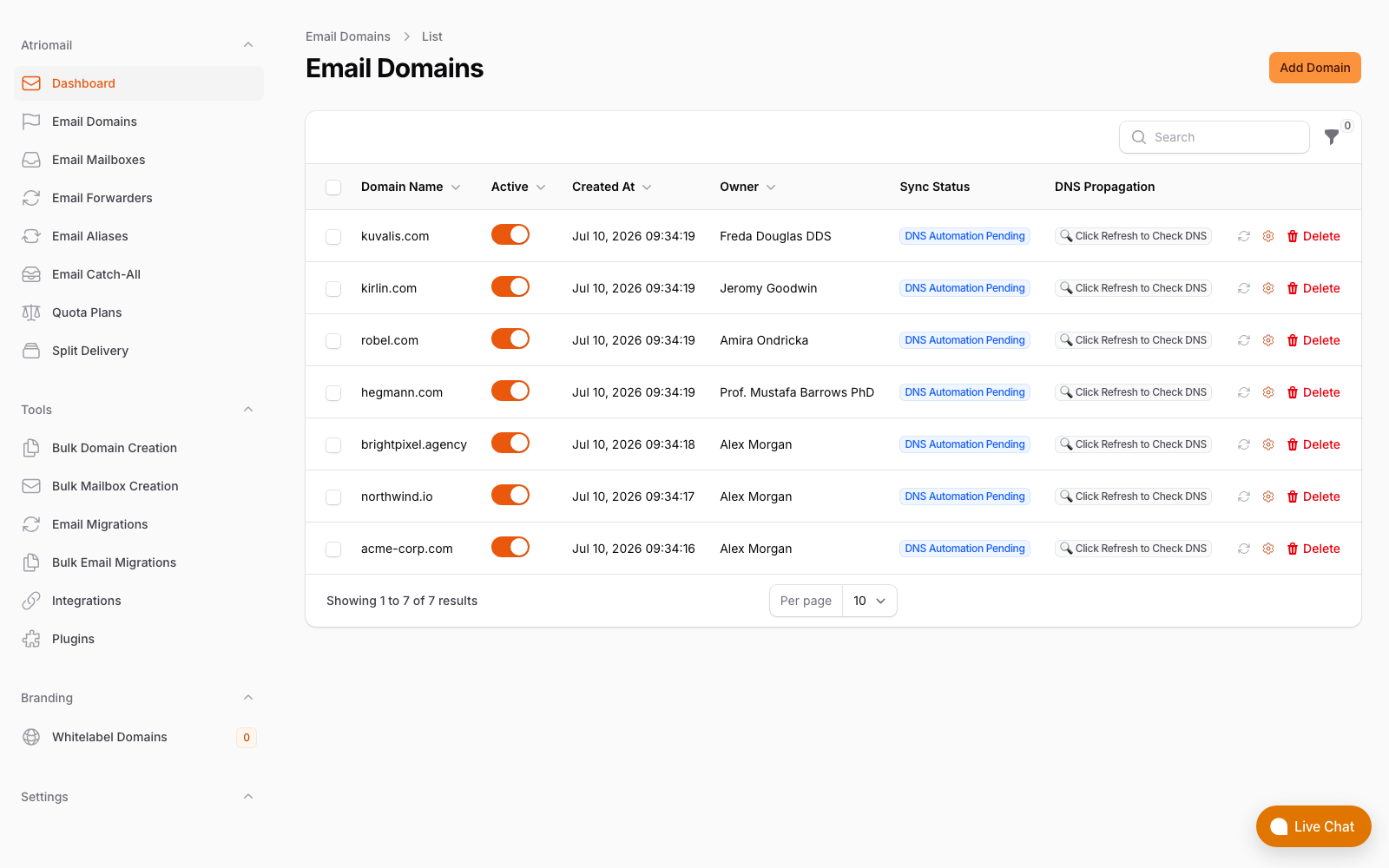
The Email Domains list, where a domain's DNS sync status confirms an autodiscover fix actually published. Real panel, no mockup.
Pricing doesn't change based on how many DNS records a given domain needs sorted out: it's still $1.39 per mailbox with 15 GB included either way, covered in the full pricing breakdown. Create your account, connect Cloudflare or Namecheap first if that's an option for the domain, then add it once you're ready for mail to actually move.
Get autodiscover right the same day you cut over. Connect Cloudflare or Namecheap before adding the domain and Atriomail writes the autodiscover and autoconfig records at the same time as MX, SPF, DMARC and DKIM. Moving 50 or more mailboxes in the same cutover is worth planning with us first.
Frequently Asked Questions
Does changing the MX record also fix autodiscover?
No. They're looked up completely separately. MX tells other mail servers where to deliver incoming mail; autodiscover tells Outlook, with an SRV record as its fallback, which server to connect to for account setup. Updating one doesn't touch the other.
How long does a fixed autodiscover record take to show up for everyone?
Two separate clocks are running. One is the DNS TTL you published the new record under. The other is however long it takes each affected Outlook profile's own local cache to expire, or to get cleared by hand, which doesn't move any faster just because DNS itself has already updated.
Does this affect Mac Mail or phone mail apps too?
Sometimes, and differently. Non-Outlook, RFC 6186-aware clients look up SRV records like _imap._tcp instead of the Microsoft-specific autodiscover name. Many phone mail apps just prompt for manual server details instead of following either mechanism. Test each app the client's users actually run rather than assuming a fix that worked in Outlook covers everything else on the same domain.
Does Atriomail publish the autodiscover record for a domain automatically?
Yes, but only on a connected Cloudflare or Namecheap account, and only once the domain clears the automated security check. On any other DNS host, the autodiscover and autoconfig values are in that domain's DNS Setup dialog to copy across by hand.
Does migrating a client's mailboxes into Atriomail also move their autodiscover record?
No. Migration moves mail only, over an IMAP sign-in. The DNS side, including autodiscover, is handled separately once the domain itself is added to Atriomail, and depends on the same DNS-provider automation, or manual copy from the DNS Setup dialog, described above.
Does the white-label add-on change what autodiscover points to?
If white-label branding is set up with your own mail server hostname, the automation on a connected Cloudflare or Namecheap account publishes that branded hostname across MX, autodiscover and the rest instead of Atriomail's own. On any other DNS host, the same values just carry your hostname instead of ours.
Recommended
- Connecting Cloudflare and Namecheap for Automatic Mail DNS, Atriomail
- SPF PermError: How to Fix an SPF Record With Too Many DNS Lookups, Atriomail
- Mastering DNS Automation to Boost Email Deliverability, Atriomail
- Email Domain Management: Setup and Branding Guide, Atriomail
- Bulk-Adding Domains and Mailboxes in Atriomail, Atriomail
- Multi-Client Email Management for Agencies, Atriomail
Latest from the blog
- How to Set Up BIMI So a Client's Logo Shows Up in Gmail and Yahoo · Oct 12, 2026
- DreamHost Email vs Atriomail: What "Unlimited" Doesn't Cover for Resellers · Oct 10, 2026
- A Client's Email Account Was Compromised: Why a Password Reset Alone Doesn't Fix It · Oct 9, 2026
- Aliases, Forwarders and Catch-Alls in Atriomail: The One Rule That Decides When They Work · Oct 8, 2026
- How to Move a Client's DMARC Policy to p=reject Without Breaking Their Mail · Oct 7, 2026