
Taking over a client's book of domains from another host means taking over years of mail in dozens or hundreds of mailboxes, and the hard part is never pointing MX at the new server. It's getting every mailbox's mail across, folders and dates intact, without anyone noticing the move happened. Bulk migration isn't one login for the whole old server either: every mailbox has its own password, so "migrate the book" really means running the same careful transfer dozens of times and keeping track of which ones actually finished.
This guide works through that job the generic way first, using IMAP and the open-source tool most hosts and migration specialists reach for, useful whatever the client's old host is and whatever you're moving them to. The last section covers how the same job runs inside Atriomail's own built-in migration tool, built around exactly this kind of multi-mailbox book rather than one mailbox at a time.
Table of Contents
- Before You Start
- Build the Mailbox and Credentials Inventory First
- Run a Folders-Only Dry Run Before Touching Any Mail
- Sync the Mail, Account by Account
- Schedule the Cutover and Run One Last Pass
- How to Verify It Worked
- Common Mistakes and How to Avoid Them
- Doing This on Atriomail
- Frequently Asked Questions
Key Takeaways
| Point | Details |
|---|---|
| Every mailbox needs its own IMAP credential | A hosting panel admin login doesn't sign in to IMAP for a client's mailbox. Bulk migration still means collecting, or resetting, one password per account, whichever tool runs the actual transfer. |
| A folders-only dry run catches naming mismatches before they cost you real mail | Different IMAP servers store folders under different namespaces; skipping the dry run is how "Sent" quietly turns into two folders on the new side. |
| The transfer tool is incremental, so plan for a final pass | A second run right before cutover only copies what's new since the first pass, which is what actually closes the gap between "migrated" and "nothing left behind." |
| Lower the MX TTL and build the destination mailboxes before any mail moves | The cutover itself should be the fast, boring step at the end, not the point where you discover a destination mailbox was never created. |
| Atriomail's built-in migration tool runs the multi-mailbox version of this same job | Bulk migration lists many mailboxes from the same old server in one job and tracks which ones finished, but every account still needs its own password, and a large book is worth planning with the team first. |
Atriomail's migration tool handles the book-level version of this job. IMAP migration is built into the panel at no charge, and a bulk job lists every mailbox from the same old server in one place instead of running a transfer command by hand for each account.
Before You Start
- An IMAP host, port and password for every mailbox, not the hosting panel's admin login. IMAP sign-in authenticates as the mailbox itself, so an admin credential that sees every account in a panel still can't sign in to any one over IMAP.
- A full list of mailbox addresses on the old server, checked against what's billed, since an address a client stopped using can still have mail worth moving, the same book-level bookkeeping covered in multi-client email management for agencies.
- A way to reset a mailbox's own password from the admin side for any account the client doesn't know it, since migration needs that specific password, not a server-level credential.
- The domain's MX TTL lowered at least a day ahead, standard migration prep covered in the reseller's email security playbook.
- A stable place to run the transfer from, a server or VPS you control rather than a laptop that might sleep mid-job.
- One single mailbox migrated and confirmed correct first, before running the same command across the rest of the book.
Build the Mailbox and Credentials Inventory First
Most hosting control panels, cPanel, Plesk and DirectAdmin among them, let an administrator list every mailbox on a domain and reset any one's password without the client's involvement. That's the starting point: a spreadsheet with, at minimum, the mailbox address, IMAP host and port, and a working password, one row per account. Resetting a password is disruptive if the client's mail app is still using it, so ask for the existing password where possible, and reset only as a last resort; exactly the kind of step covered in the client support process for email resellers.
For a typical cPanel-hosted domain, IMAP runs over TLS on port 993 and POP3 on port 995, with the mailbox's full address, not just the part before the @ sign, as the username (cPanel's own email client documentation, checked October 2026). Plesk and DirectAdmin document equivalent settings for their own Dovecot-based stacks. Confirm the exact host and port per domain rather than assuming every account matches, a detail worth cross-checking against whatever you're already tracking in the guide to email domain management and branding.
Every account still needs its own password, on Atriomail too. Atriomail's bulk migration tool lists many mailboxes from the same old server in one job and tracks which ones finished, but it can't skip collecting each mailbox's own IMAP credential any more than the command-line version below can.
Run a Folders-Only Dry Run Before Touching Any Mail
The open-source tool most migration specialists reach for is imapsync, under a no-restrictions NLPL license, shipping for Linux, Windows and macOS (imapsync's own project page, imapsync.lamiral.info, checked October 2026). Start by testing credentials on both sides without transferring anything:
imapsync --host1 oldmail.clientdomain.com --user1 'name@clientdomain.com' --password1 'oldpass' --ssl1 \
  --host2 newmail.example.com --user2 'name@clientdomain.com' --password2 'newpass' --ssl2 \
  --justlogin
--justlogin signs in on both ends and stops, the fastest way to catch a typo'd password or wrong hostname before committing to a real transfer (imapsync's own documentation, checked October 2026). Once every account logs in cleanly, run a folders-only pass that maps the folder structure on the new side and reports what it would do, without copying a single message:
imapsync --host1 oldmail.clientdomain.com --user1 'name@clientdomain.com' --password1 'oldpass' --ssl1 \
  --host2 newmail.example.com --user2 'name@clientdomain.com' --password2 'newpass' --ssl2 \
  --justfolders --automap --dry
--dry "makes imapsync do nothing for real; it just prints what would be done" (imapsync's own documentation, checked October 2026), and --automap maps each source folder to its destination equivalent rather than assuming identical names. This catches the most common structural problem in a cross-host migration: if the old server stores folders under an INBOX. namespace the new one doesn't expect, folders like Sent or Drafts can show up twice, once correctly and once oddly duplicated, unless the mapping is set explicitly (Dovecot's own mailbox migration documentation, doc.dovecot.org, checked October 2026). Read the dry run's output folder by folder, not just its summary line.
Sync the Mail, Account by Account
With folder mapping confirmed, drop --dry and run the real transfer, keeping --automap:
imapsync --host1 oldmail.clientdomain.com --user1 'name@clientdomain.com' --password1 'oldpass' --ssl1 \
  --host2 newmail.example.com --user2 'name@clientdomain.com' --password2 'newpass' --ssl2 \
  --automap
By default, imapsync also tries to set each message's internal date on the destination to match its original date on the source, rather than stamping everything with today's date (imapsync's own FAQ on date handling, lamiral.info, checked October 2026). Whether that actually takes depends on the destination server: the current IMAP standard says a server receiving a date-time with the APPEND command should use it, and most common mail servers do, but "should" leaves room for a destination to override it with its own upload timestamp (RFC 9051, the IMAP standard that obsoletes the older RFC 3501, rfc-editor.org, checked October 2026). Spot-check a handful of older messages after the first account finishes.
Run accounts in a modest batch rather than firing the entire book at the old server in parallel. Shared hosting platforms commonly cap how many simultaneous IMAP connections a single account or source IP can hold open; pushing the whole book at a server you don't control risks tripping that limit and getting throttled partway through, a worse outcome than the migration simply taking longer. A handful of accounts in sequence, each one's result logged before starting the next, doesn't gamble the rest of the book on one host's rate limiting.
Schedule the Cutover and Run One Last Pass
Once the bulk transfer finishes and the per-account counts check out (the next section covers how), schedule the MX cutover using the TTL you lowered in advance. Because imapsync skips messages that already exist on the destination, identified by headers like Message-Id, it's safe and expected to run twice: "incremental means you can stop the transfer at any time and restart it later efficiently, without generating duplicates" (imapsync's own documentation, checked October 2026). Run the same command again immediately before, or right after, the MX cutover, and it will skip everything already copied and pull across only whatever mail arrived in the gap.
Don't delete or disable the old mailboxes the moment the cutover takes effect. A domain's mail server hostname settings, including where its autodiscover record points, are a separate DNS concern from the mail transfer itself. If the new host is on a connected Cloudflare or Namecheap account, the DNS side of a cutover, MX, SPF, DMARC and the rest, can publish automatically once the domain is added, a mechanic covered in connecting Cloudflare and Namecheap for automatic mail DNS; on every other DNS host, those records still go in by hand. Keep the old mailboxes reachable, even read-only, for several days after cutover in case anything needs a second look.
How to Verify It Worked
- Compare per-folder message counts on both sides for every account, not just the tool's own one-line summary. An IMAP
STATUScheck or each server's own admin panel counts are more reliable than one aggregate number across a whole book. - Spot-check message dates in a few older folders, sorted oldest first, to confirm the original dates transferred rather than everything showing today's date.
- Send a fresh test message to each migrated domain after cutover and confirm it lands in the new mailbox, not the old one, the simplest proof the MX change actually took effect.
- Read each account's transfer log, not just its exit status. A job that reports finished can still have logged errors on a handful of messages in one folder, invisible unless someone opens the log.
- Run the domain through Atriomail's free DNS checker at /dns-checker/ once mail points at the new host. It reads the domain's public MX, SPF, DKIM and DMARC records, not mailbox contents, but it's a fast independent confirmation the DNS side of the cutover is live before you call the move complete.
Common Mistakes and How to Avoid Them
- Using the hosting panel's admin login instead of each mailbox's own IMAP password. Symptom: the
--justlogintest fails authentication for every account, even though the admin can see all of them fine in the panel, because a panel login and a mailbox's IMAP credential are two different things. - Skipping the folders-only dry run. Symptom: Sent and Drafts show up twice, one correctly named and one oddly prefixed, because the old server's folder namespace didn't match what the new server expected.
- Running the whole client book in parallel against the old server. Symptom: several accounts start failing with authentication or connection errors midway through, not because a password was wrong, but because the old host started throttling the migration machine's IP.
- Cutting MX over before running a final incremental pass. Symptom: mail sent after the cutover but before that last pass never gets copied across, because it arrived while the tool's last comparison was still against an older snapshot.
- Declaring success from the tool's one-line summary instead of per-folder counts. Symptom: a client reports a missing folder weeks later, because a handful of messages in one folder errored out silently during a run nobody checked closely.
- Deleting the old mailboxes immediately after cutover. Symptom: a client needs an email from the brief window between the last sync pass and the actual cutover, and there's no source copy left to check.
Build these checks into whatever process already governs avoiding service interruptions with proven email security protocols, since one missed folder is easy to lose track of when the rest of a forty-domain batch finishes cleanly.
Doing This on Atriomail
Atriomail's built-in migration tool, under Tools > Email Migrations, does the same job described above, over an ordinary IMAP sign-in, without the command line. Bulk migration lists many mailboxes from the same old server in one job and tracks how many completed or failed, so instead of running a transfer command by hand for every account, you add the whole list once. Every account still needs its own password, exactly as with the generic approach, and a genuinely large book is worth planning with the Atriomail team first rather than queuing it up as one unattended overnight job.
Before any mailbox can receive migrated mail, it has to exist on the destination side. Onboarding a client's whole book of domains means bulk-creating the destination domains and mailboxes first, up to 500 at a time, the equivalent of the inventory step covered earlier. For a single mailbox, the panel tests sign-in on both old and new mailbox before copying anything, so a wrong password shows up in seconds, and a migration can run as a dry run first or be scheduled for later. Migration keeps the original folder structure and date on every message; it moves mail only, not calendars or contacts.
The same source limits apply: the tool works for typical hosting mail on cPanel, Plesk or DirectAdmin servers signed in with a password, and for Gmail, Google Workspace, Yahoo Mail and iCloud Mail with an app or app-specific password (Google requires 2-Step Verification, and a Workspace admin can block them). It does not work for Microsoft 365, Exchange Online, Outlook.com, Hotmail or Live.com, since Microsoft no longer allows password sign-in over IMAP; moving a Microsoft 365 tenant needs a different route, so talk to the team before quoting one. Writing the MX record on a connected Cloudflare or Namecheap account happens as soon as the domain clears the standard security check, so add the domain only when ready to switch; on any other DNS host, the records sit in that domain's DNS Setup dialog to copy by hand.
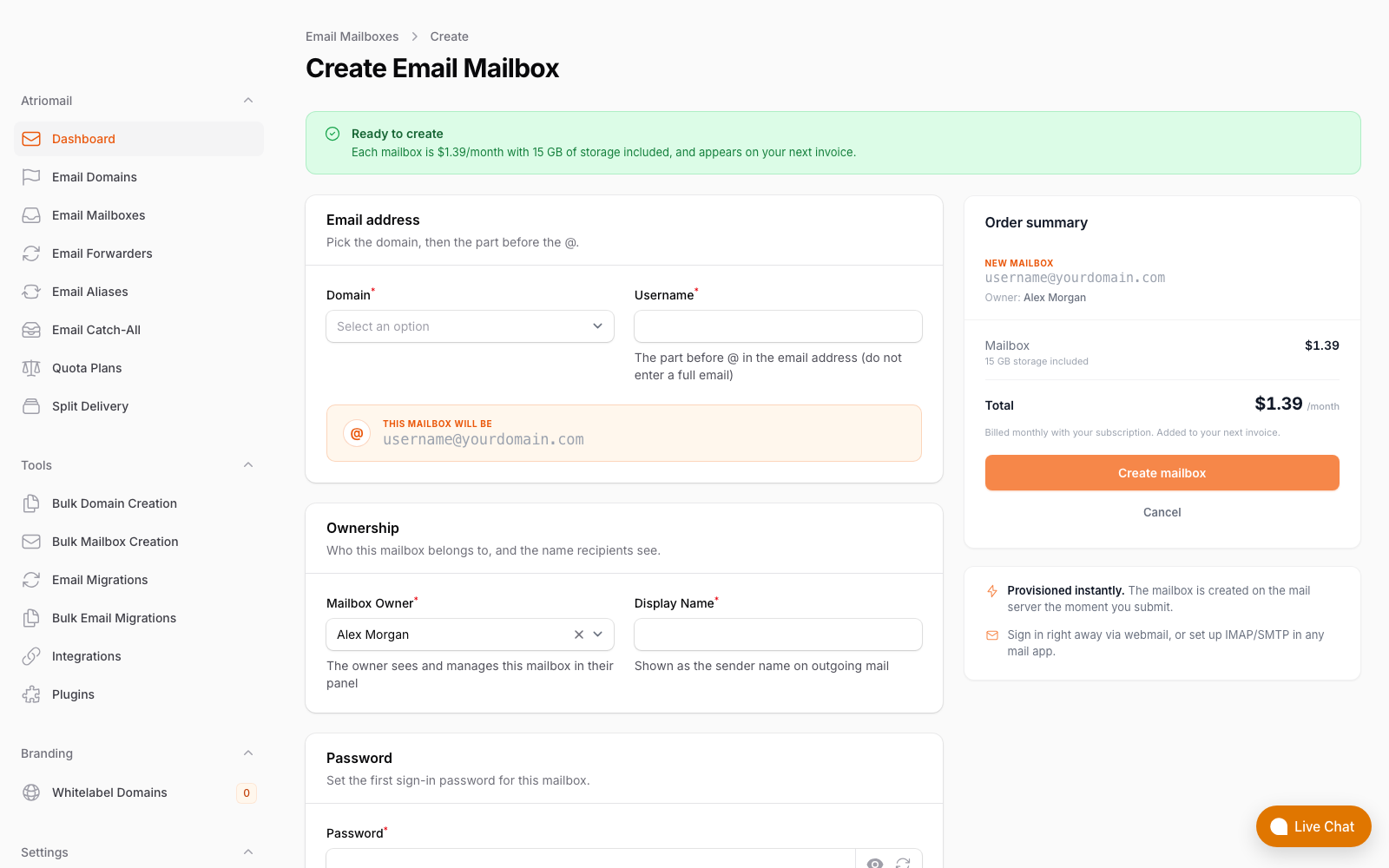
Creating the destination mailbox a migration job needs before it can copy anything into it. Real panel, no mockup.
On the economics: a 200-mailbox client book costs $278 a month wholesale at $1.39 per mailbox. Billed at $5 per mailbox, that's $1,000 a month, leaving $722 a month in margin before card fees, support time and any white-label fee; full breakdown on the pricing page. Create your account, bulk-create the destination mailboxes, then migrate one test account before queuing the rest.
Moving 50 or more mailboxes in one book? Plan it with us first through the contact page; a large migration goes smoother on a schedule than as a single unattended overnight job. No card is needed to create your account, and mailboxes are billed from the first one.
Frequently Asked Questions
What if the old host doesn't support IMAP sign-in at all?
Then neither this approach nor any other IMAP-based bulk migration tool, Atriomail's included, can pull mail from it. Check with the old host directly; a server that only offers a proprietary export format or no remote mail access at all needs a different plan before you can commit to a migration date.
How long does migrating a book of mailboxes like this take?
It depends on how much mail each account holds and how fast the old server lets it be read, neither of which a generic guide can promise a number for. Running a single representative account first gives you a real estimate for that specific book, rather than guessing from a client count alone.
Can I migrate Gmail or Google Workspace mailboxes the same way?
Yes, with an app password rather than the account's normal password; Google requires 2-Step Verification to be turned on before it will issue one, and a Workspace admin can block app passwords account-wide. Atriomail's own migration tool supports the same app-password approach for Gmail, Google Workspace, Yahoo Mail and iCloud Mail.
Does Atriomail's migration tool need an IMAP password for every account, too?
Yes. There's no way around collecting each mailbox's own credential, whichever tool runs the transfer. Atriomail's bulk migration saves you from running a sync command by hand for each account, but it still needs every account's own password to sign in.
Does migrating the mail also move the domain's DNS records?
No. Migration moves mail only, over an IMAP sign-in. The domain's MX, SPF, DKIM and DMARC records are a separate step, handled automatically once the domain is added on a connected Cloudflare or Namecheap account, or by hand elsewhere from that domain's DNS Setup dialog.
What's the difference between this and Atriomail's bulk domain and mailbox creation tool?
Bulk domain and mailbox creation provisions empty destinations, up to 500 domains or 500 mailboxes on a domain in one step. Migration is the separate job that fills those mailboxes with the client's existing mail once the destinations exist.
Recommended
- The Agency Playbook: Step-by-Step Email Migrations with Atriomail
- Bulk-Adding Domains and Mailboxes in Atriomail, Atriomail
- Multi-Client Email Management for Agencies, Atriomail
- How to Fix an Autodiscover Record That's Still Pointing at the Old Mail Host, Atriomail
- Connecting Cloudflare and Namecheap for Automatic Mail DNS, Atriomail
- Client Support Process for Email Resellers, Atriomail
Latest from the blog
- How to Set Up BIMI So a Client's Logo Shows Up in Gmail and Yahoo · Oct 12, 2026
- DreamHost Email vs Atriomail: What "Unlimited" Doesn't Cover for Resellers · Oct 10, 2026
- A Client's Email Account Was Compromised: Why a Password Reset Alone Doesn't Fix It · Oct 9, 2026
- Aliases, Forwarders and Catch-Alls in Atriomail: The One Rule That Decides When They Work · Oct 8, 2026
- How to Move a Client's DMARC Policy to p=reject Without Breaking Their Mail · Oct 7, 2026